

D2L (the company that owns Brightspace) uses Continuous Delivery to update our Brightspace system. The Continuous Delivery model gives us regular monthly updates allowing for incremental and easily integrated changes with no downtime required for our Brightspace system.
Our Continuous Delivery update occurs on the 4th Thursday of each month. D2L provides release notes to help users stay up-to-date with the changes.
Here are some of the updates in the August 2026/20.26.08 release were added to our system:
1) Quizzes – Improved filter and source dropdowns in Question Library
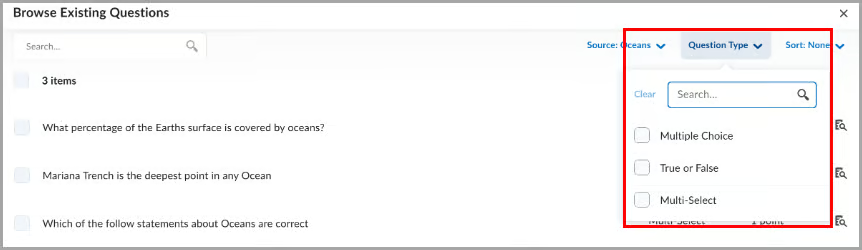
This update improves the source and filter dropdowns in the Browse Existing Questions dialog to better align with Brightspace standards and provide a more consistent experience.
Both dropdowns now include a search option, helping instructors find sources and filters more quickly.

2) Quizzes – Flag questions and strikethrough answer options
This release introduces the question annotation option in Quizzes. Learners can flag quiz questions to revisit later and apply strikethrough formatting to answer options to help narrow their choices.
Learners can select the bookmark icon  beside a quiz question to flag it for review. Flagged questions appear in the left navigation, allowing learners to quickly return to them.
Learners can also select the strikethrough icon  beside answer options to eliminate choices they believe are incorrect.

Instructors can disable these tools for learners by selecting Hide question annotation tools in the Timing & Display section of the quiz edit page.

When creating or editing a quiz, in the Timing & Display section, select Hide question annotation tools to disable question flagging and answer option strikethrough for learners.
This feature implements the following PIE item:
- D7075 (Highlight, strikeout, and flag quiz questions and answer choices)
3) Work To Do widget – Evaluation activities are hidden by default
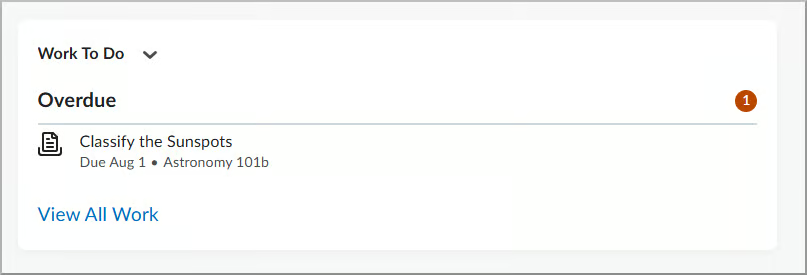
The Work To Do widget now helps learners with multiple roles, such as teaching assistants, focus on upcoming and overdue work by hiding evaluation activities by default. Previously, the widget displayed both personal course due dates and evaluation tasks for users with multiple roles, making it more difficult to track learner deadlines.
This feature implements the following PIE item:
- D8285 (Allow users to show/hide assignments by Role in Work to Do Widget)
4) Work To Do widget – Automatically marks modules as complete
This release updates the Work To Do widget so that when learners complete all activities in a module, the module is automatically marked as complete and removed from the widget.
Learners now see only activities that still require completion, reducing clutter in the widget.
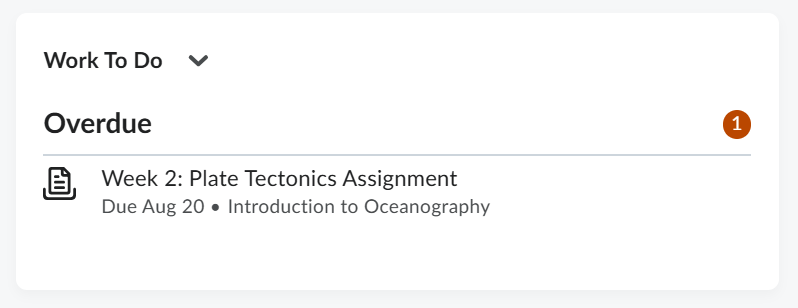
Previously, completed modules that have due dates could continue to appear as overdue because the module itself was not automatically marked as complete. As a result, learners could see overdue modules that no longer required action and could not be manually dismissed.
NOTE: This change applies only to modules completed after this release. Existing modules that are already overdue continue to appear as overdue.
This feature implements the following PIE item:
- D8813 (Work to Do - Remove Completed Module Dates)
If you are interested in getting more information about this and all the August Continuous Delivery updates, refer to the Brightspace Platform August 2026/20.26.08 Release Notes.
Additionally, refer to the Brightspace Release Notes for Continuous Delivery Releases, for details about current, past, and to preview upcoming continuous delivery updates.
Want more information?
View current, past, and preview upcoming Continuous Delivery release notes
Instructors Quick Start Tutorial
Brightspace Known Issues
Request a sandbox course
Sign-up for Brightspace training sessions
You can find Brightspace help at D2L's website.
Join the Brightspace Community.
Try these Brightspace How-To documents.
Visit our Brightspace FAQs for additional Brightspace information
or schedule a one-on-one session, email, or
call Janice Florent: (504) 520-7418.
Note: Are you doing something innovative in Brightspace or perhaps you've discovered a handy tip? Share how you are using Brightspace in your teaching and learning in The Orange Room.