November 4 – 8, 2024 is National Distance Learning Week (NDLW). This is the 17th Anniversary of NDLW.
In association with NDLW, the United States Distance Learning Association (USDLA) is offering free webinars focused on how AI is impacting Distance/Digital Education. A few other organizations are offering free webinars during NDLW as well.
For more information on the activities and to register for the webinars visit NDLW 2024.
Giving students timely, useful feedback can greatly enhance learning and improve student achievement. ICYMI, read my Give Students Feedback That Helps Them Learn blog post for information on providing better feedback.
Are you looking for ways to simplify grading and for providing feedback on assignment submissions? These Brightspace tools can help:
Annotations Tool
The Annotations tool allows instructors to provide feedback directly in submitted assignments. Feedback can be provided as text highlighting, freehand drawing, text annotation, and note annotation.
The use of a stylus is not required when using the Annotations tool. However, it could help to speed up the process of marking up the assignment submissions.
NOTE: The Assignment Grader app allows instructors to make annotations on assignments. The Assignment Grader app is no longer available for download to new users. Existing users may continue to use the app if they have it installed on their device, but no further updates or support will be made available by D2L and the app is scheduled to be removed from app stores. As an alternative mobile grading option, D2L recommends using the Quick Eval tool. More information can be found in this Quick Eval, Assessment, and The Future of Evaluation in Brightspace article.
Rubrics
Rubrics allow instructors to establish set criteria for grading assignments. Using the rubrics click-and-score simplicity saves time when grading. With a rubric you can provide consistent evaluation and contextual feedback to students. You can add additional personal feedback to each criterion, expanding on why you chose that level and what additional work would be required to improve on it.
For more information, refer to this using interactive rubrics in Brightspace blog post.
Video Notes
Audio and video feedback can provide richer and more detailed feedback than may be possible through written comments. Visual or audio feedback also provides a more personal way of giving feedback. You have the option to provide audio and/or video feedback in Brightspace. Use Video Notes to provide short, video-based feedback, comments, or instructions.
Here are a couple of blog posts with more information:
Quick Eval allows evaluators to see a list of unevaluated learner submissions from all their courses. Submissions from Assignments, Discussions, and Quizzes are displayed in one location to improve efficiency when locating work that requires evaluation and providing feedback to learners.
For more information, refer to this blog post on using Quick Eval.
The Orange Room
Have you visited The Orange Room (Brightspace Educator Share Showcase)? The Orange Room is a community where educators can learn from each other about efficient and innovative ways to use Brightspace. Several of your colleagues shared tips and suggestions already. Here are two contributions that may be of interest to you:
Note: Are you doing something innovative in Brightspace or perhaps you've discovered a handy tip? Share how you are using Brightspace in your teaching and learning in The Orange Room.
D2L (the company that owns Brightspace) uses Continuous Delivery to update our Brightspace system. The Continuous Delivery model gives us regular monthly updates allowing for incremental and easily integrated changes with no downtime required for our Brightspace system.
Our Continuous Delivery update occurs on the 4th Thursday of each month. D2L provides release notes to help users stay up-to-date with the changes.
Here are some of the updates in the October 2024/20.24.10 release that were added to our system this month:
1) Assignments – Retract button removed for users without the Give Feedback permission
With this release, the Retract button is removed from submission evaluation pages for users who have the Assignments > Delete Feedback permission but not the Assignments > Give Feedback permission.
Previously, all users with the Delete Feedback permission could click the Retract button on submission evaluation pages. However, when they clicked the button, nothing happened unless they also had the Give Feedback permission.
Before this update, on the submission evaluation page for users with the Delete Feedback permission but not the Give Feedback permission could click Retract.After this update, the Retract button is removed from the submission evaluation page for users with the Delete Feedback permission but not the Give Feedback permission.
2) Brightspace Editor – Path detection warning and configuration variable
A warning now appears when a user attempts to add an object (such as a link or image) in Brightspace Editor that has a path outside of the current course offering. The warning tooltip explains that if the item is copied to another course, the incorrect path would also be copied, potentially preventing learners from accessing the object.
This new warning alerts the content creator to ensure a consistent experience for learners.
The path detection warning and tooltip appear in the Brightspace Editor.
Note: Files shared from Public Files or external URLs are not affected and will not trigger the warning.
Note: Are you doing something innovative in Brightspace or perhaps you've discovered a handy tip? Share how you are using Brightspace in your teaching and learning in The Orange Room.
Thanks to those of you who attended last week's "Unlocking the Potential of Brightspace to Help Identify and Support At-Risk Students" workshop. The workshop, the twentieth in our #LEX Advanced series, helps you to build on the skills you learned in the #LearnEverywhereXULA course and will help you to unlock the full potential of Brightspace to more effectively support the success of your students.
In case you missed last week’s training session or if you attended the training session and want to recap what was covered, a copy of the workshop recording and resources referenced in the workshop are available. You can find the workshop recording and other resources in support of the workshop on the CAT+FD wiki.
Additionally, if you did not get the opportunity to earn a digital badge for participating in the workshop, it's not too late to earn that badge. We have a corresponding “Support At-Risk Students” module in the #LearnEverywhereXULA (#LEX) course that you can complete to earn a digital badge for this topic. The badge will count towards your #LEX Advanced certification.
A conversation with Asem Abdullahad, Michelle Boissiere, Wendy Gaudin, and Elizabeth Manley on communities of practice at Xavier, facilitated by incoming CAT+FD Director Jason S. Todd.
Elizabeth ManleyAsem AbdulahadWendy GaudinMichelle Boissiere
Quiz Results Displays (formerly known as Submission Views) can be created to allow students to go back and review a submitted quiz. Customizing the Quiz Results Displays allows instructors to choose what information the student sees upon completing the quiz, as well as what they can see when they go back to review a quiz. The default Quiz Results Display shows the overall score to the student (when they submit their quiz) and nothing else. To release more information to students (i.e. feedback, their submitted answers, the answers to each question, class averages and statistics, etc.) you need to either edit the default view or set up an additional view.
The Default View is what students see immediately upon submitting their quiz. The Default View typically does not allow students to see answers to a quiz, but does allow them to view their score on auto-graded items. You can adjust the Default View to allow students to see the answers to a quiz, keep in mind the Default View is what students see as soon as they submit their quiz. Thus, auto-publishing the attempt results and/or showing the answers in the Default View while the quiz is still in progress would reveal the score and/or answers to the quiz before ALL students have submitted the quiz.
Additional Views can be created with a specified release date and time that allows instructors to release information, or answers, after a certain time. For example, an Additional View could be created for after all students have submitted the quiz (i.e., after the quiz is closed) to allow students to view their score and which questions they answered correctly and/or incorrectly, as well as answers to questions. Another Additional View could also be created to allow students to see the class statistics and could be set to release at the end of the semester. If a quiz has multiple attempts, you can also specify a score required on an attempt in order to release the submission view. You may want an Additional View to be available to the students for a short period of time. To make this happen, you would create another Additional View with the date/time you would like the system not to show any questions.
You may decide that you want the Additional View to be available to your students through the end of the semester. In this case, I suggest creating a “Shutdown View” with an end-of-semester date/time. Creating a “Shutdown View” with an end-of-semester date/time is good practice if you are planning to copy a course with quizzes that have Additional Views into another course. This ensures that a quiz with a Shutdown View will force you to update the settings in the course you are copying to. Thus reducing the possibility that you have a Additional View enabled before you want it to be.
Important Notes:
Additional Views DO NOT take effect until the quiz scores have been published.
The Limited Duration option allows students to only be able to access the submission view for a short period immediately after completing the quiz. This option SHOULD NOT be used if you want students to review at a future date/time. In this case you should set up an additional view for the date/time you want the view to start AND set up a “Shutdown View”.
Note: Are you doing something innovative in Brightspace or perhaps you've discovered a handy tip? Share how you are using Brightspace in your teaching and learning in The Orange Room.
It’s only mid-October, but many of us are already thinking ahead to the end of the semester. Students may be anticipating Final Exams and tickets home, but I’m thinking about something a little different—course evaluations.
It’s only mid-October, but many of us are already thinking ahead to the end of the semester. Students may be anticipating Final Exams and tickets home, but I’m thinking about something a little different—course evaluations.
You might remember the old days of carbon-copy forms, sealed envelopes, and drop boxes in the Old Convent. Thankfully, we’ve moved to Brightspace for evaluations, saving us from those logistical headaches. No more setting aside class time, reading out scripted instructions, or finding that one student willing to trek across campus with a stack of forms. Now, it’s just a matter of reminding students (again and again) to log into Brightspace and click on the evaluation link.
But why am I thinking about this now, in the middle of October? At Xavier, not every course is evaluated every semester. Only first-year faculty have all of their courses evaluated; non-tenured faculty, after their first year, have two randomly selected courses evaluated each semester; tenured faculty only have one randomly selected class evaluated each year. However, faculty can request evaluations for any or all of their courses.
We recently received a reminder from the Provost that the deadline to request additional evaluations is Monday, October 21. You can submit your request here.
Why You Should Consider Requesting Evaluations
Since earning tenure, I’ve requested evaluations for most of my classes. Why? There are several reasons:
Consistency: If one class is being evaluated, why not all? Having evaluations for all my courses provides a clearer, more comprehensive picture of my teaching performance.
Certainty: What if my best class of the semester isn’t randomly selected? By requesting evaluations, I ensure I capture the most insightful feedback.
Depth: The more evaluations I collect, the more data I have to work with. This richer dataset allows me to identify trends, strengths, and areas for improvement over time.
Course evaluations offer valuable insights into our teaching. The more data we gather, the richer the story we can tell about our teaching journey. While I’m no data expert, even basic visualizations help me make sense of patterns. For instance, this chart compares my positive and negative responses over the years.
Fall 2007 to Spring 2022. This chart offers a comparison between positive (Excellent or Good) responses and negative (Fair or Poor) responses.
In addition to quantitative data, tools like ChatGPT can help summarize qualitative feedback. For example, I recently used it to analyze student comments on my strengths as a teacher. One recurring theme? Supportiveness and understanding. Students often appreciate how I listen to their concerns and adapt based on feedback.
What you do with the data is up to you, but one thing is clear: You can’t benefit from feedback you don’t collect. Whether you’re in your second year or your 18th or your 42nd, consider requesting evaluations for one or more of your classes this semester. The insights you gain might surprise you.
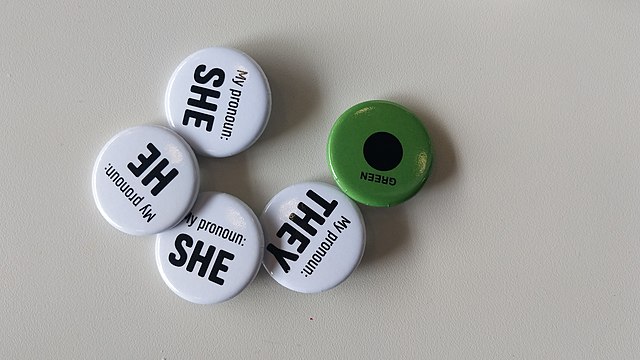
Wednesday, October 16th, is International Pronouns Day. International Pronouns Day is celebrated on the third Wednesday of October and seeks to make respecting, sharing, and educating about personal pronouns commonplace. Referring to people by the pronouns they determine for themselves is basic to human dignity. Being referred to by the wrong pronouns particularly affects transgender and gender nonconforming people. For more information about International Pronouns Day visit pronounsday.org.
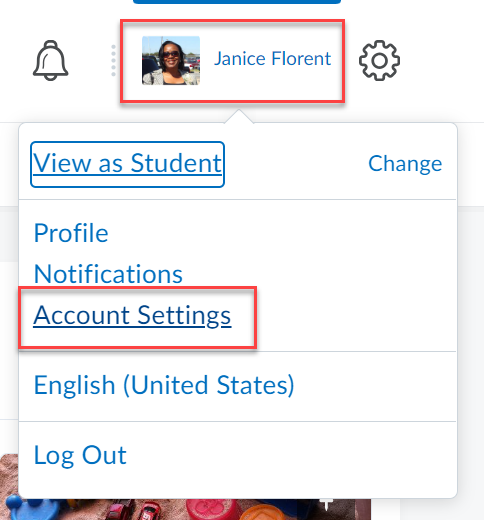
Did you know, users have the option to indicate their pronouns in their Brightspace user profiles? Brightspace user profiles are visible to anyone who shares a course with a particular user, including students, instructors, administrators, etc.
The area in your Account Settings, where you can set your pronouns
A user profile card with the pronouns displayed
Pronouns display in the 'Last Name, First Name' column of Classlist, to the right of the user's name, in parentheses. User name text is blue, pronoun text is grey.
Celebrate International Pronouns Day by entering your pronouns into Brightspace and invite your students to do the same.
If you are looking for a good pronoun primer on inclusive teaching, check out this Gender Diversity and Pronouns resource from the University of Michigan.
Also, check out name.pn if you or your students are looking for an easy way to share how you would like people to use your name. You can create a URL that links to information to help users get your preferred pronouns, title, and the pronunciation of your name correct.
Note: Are you doing something innovative in Brightspace or perhaps you've discovered a handy tip? Share how you are using Brightspace in your teaching and learning in The Orange Room.
Do you want to see the coursework that needs to be graded all on one page in Brightspace? The Quick Eval tool can help.
Quick Eval is a tool that allows evaluators to see a list of unevaluated learner submissions from all their courses. Submissions from Assignments, Discussions, and Quizzes are displayed in one location to improve efficiency when locating work that requires evaluation and providing feedback to learners.
The Submissions tab of the Quick Eval page.
Evaluators can sort, filter, and search submissions to prioritize their evaluation work. Sorting can be done using the first or last name of the learner, Activity Name, Course Name, and Submission date. Filtering can be done using one or more of the following categories: Activity Name, Course Name, and Submission Date. Clicking on a user’s name opens an evaluation screen directly from the Quick Eval list where the evaluator can complete their assessment. The search function in Quick Eval allows evaluators to locate submissions for evaluation by searching for a specific user, assignment, quiz, discussion topic, or course.
The Activities tab of the the Quick Eval page.
When learner submissions are evaluated and published, they no longer show up in the Quick Eval list. An empty Quick Eval list gives educators confidence that no learner submissions are pending evaluation.
Quick Eval Widget
Did you know that Quick Eval can be added to your course homepage as a widget? The Quick Eval widget displays a list of up to six activities with submissions to evaluate. The activities are sorted by due date, with the earliest date first. The icon indicator in the widget shows the type of activity (assignment, discussion, or quiz), and the number of unevaluated submissions for each activity.
Activities dismissed in the Quick Eval tool are not displayed by the Quick Eval widget.
The Quick Eval widget on course homepage displaying no submissions needing evaluation
The Quick Eval widget on the Organization homepage displaying unevaluated activities from multiple courses
If you interested in customizing your course homepage with widgets, here are some blog posts with information that explains how to do it:
On the NavBar, click Course Admin, then click Quick Eval.
Click Submissions on the View By toggle.
All ungraded submissions will be displayed. You can sort submissions by first and last name, activity name, course, or submission date. You can also filter results.
Click the learner's name to evaluate the submission.
As you complete and publish evaluations they will no longer appear in Quick Eval.
Note: Are you doing something innovative in Brightspace or perhaps you've discovered a handy tip? Share how you are using Brightspace in your teaching and learning in The Orange Room.
The 'Observed in Person' assignment submission type is for situations where a learner needs to present something or demonstrate something and an instructor needs to confirm that it was completed. This submission type allows instructors to create assignments for a wide variety of activities and provide evaluation and feedback for these assignments in Brightspace.
The ‘Observed in Person’ submission type is meant for scoring and evaluation of a learning activity such as demonstration, presentation, lab test, etc.
There are four submission types to choose from when creating an Assignment in Brightspace. The submission types are:
File submission: learners upload and submit a file to the assignment.
Text submission: learners post text, image, or a link to their work in a text box within the assignment.
On paper submission: learners submit a physical copy of their assignment directly to their instructor. No file upload is required to complete the assignment.
Observed in person: allows instructors to observe learners as they perform tasks, such as in-class presentations, and evaluate the observation. No file upload is required to complete the assignment.
There are three options to mark an ‘Observed in Person’ assignment as completed:
Automatically on due date – Brightspace marks the assignment as completed on a pre-set date.
Automatically on evaluation – Brightspace automatically marks the assignment as complete when the instructor evaluates the assignment using any of the assessment methods in Brightspace.
Manually by Learner – The student will mark the assignment as complete.
Note: Are you doing something innovative in Brightspace or perhaps you've discovered a handy tip? Share how you are using Brightspace in your teaching and learning in The Orange Room.