Skip to content

Brightspace, our Learning Management System (LMS), is designed with accessibility in mind. However, it is the responsibility of the instructor and/or course designer to ensure their course content is formatted using best practices for accessibility; including the use of good heading structure, text formatting, contrast and color, descriptive links, alternative text, tables, lists, etc.

I am writing a series of accessibility related blog posts that will provide suggestions on how you can make small changes when creating course content to make it accessible. This is the third tip in my series of accessibility related blog posts and it focuses on descriptive links.

Signpost showing two arrows: one pointing left and the other right, suggesting different directions to take.

Links are like sign posts. They should tell you what you will find when you follow them. When using a computer, people are generally skimming pages for links. They tend to skim pages to quickly find what they are looking for.

Text links on a page are easily identifiable to persons who are not visually impaired because they are normally colored and underlined, and therefore stand out from the other information on the page.

Persons with a visual impairment using screen reader software are presented with a “links list” with all the available links found on the page. Screen reader users and persons using text-to-speech browsers often navigate websites going from link to link using the tab key, so providing descriptive links is extremely important.

Link text stands out in the same way that bold text does. If all your links have non-descriptive link text like "click here" or "more information" users are forced to read the text around the link to understand the context of the link and where it will take them. Therefore "click here" and “more information” are more of a hindrance than a help.

A non-descriptive link text example showing 'More Information' as the link text and website the link goes to is not clear.

For effective skimming, both visual and non-visual users benefit from link text that can stand on its own without the surrounding context of the page. Good link text provides a clear description of the page that will load when following a link. With good descriptive link text, users can skim links and make quick informed decisions about the path to take to accomplish their task. With non-descriptive link text, users cannot ascertain where the link will take them from the link text alone. Therefore, you should avoid non-descriptive link text such as:

  • Click here
  • Here
  • More information
  • Read more
  • Continue

These types of non-descriptive link text offer no explanation and require users to expand their focus to the surrounding context or follow the link to discover its destination.

When choosing descriptive links the link text needs to be long enough to convey the purpose of the link and no longer. Make link text clear and self-explanatory to support quick and effective navigation.

A descriptive link example showing 'Smithsonian Museum of Natural History' as the link text that will take users to that website.

When scanning links, the first words in the link text are the ones most likely to grab the user’s attention. Link text that begins with keywords is easier to scan efficiently and works better with software features like "link lists" that visually impaired individuals use to get an alphabetized list of links on a page.

Links beginning with non-descriptive words are not very helpful. Consider these two examples "All about ocean acidification" and "Learn more about global warming." Scanning these links will be slower and the alphabetized links list is not going to be very useful. A better approach is to use only the keywords for link text. For example those two links could be improved if they were formatted as "All about ocean acidification" and "Learn more about global warming."

A content topic in a Brightspace course that highlights two descriptive links in the topic description, improving clarity and usability for users.
A content topic description that highlights two descriptive links, improving clarity and usability for users.

Some users make links out of entire sentences or entire paragraphs. These long links are probably unnecessary and are not user-friendly for screen reader users. Remember that screen reader users cannot visually scan through lengthy links. They have to listen to the entire text. Some screen reader users get frustrated with long link text and move on to the next link if they cannot understand the purpose of the link after the first few words.

URLs are not always human-readable or screen reader friendly and therefore using URLs as link text should usually be avoided. Exceptions are when the document is intended to be printed or if the URL is relevant content.

In most cases, it is better to use human-readable text instead of the URL. The human-readable link Design for All Learners: Create Accessible and Inclusive Learning Experiences is more user-friendly than the link to purchase the book by the same title on Amazon.com, which consists of this 115-character link full of letters, numbers, slashes, and text that is not very human-readable (https://www.amazon.com/Design-All-Learners-Accessible-Experiences/dp/1957157895/ref=cm_cr_arp_d_product_top?ie=UTF8.)

Additionally, links don't always lead to web pages. It is equally important to make this clear in your link text. Users appreciate knowing in advance, for example, that if they click on a link on their mobile device they will download a 20Mb PDF. In this case, the link text should indicate that it is a link to a file, including type and size of the file. Here's an example: Assignments Tool Quick Reference Guide (pdf 587KB).

Hyperlinks that are good for both accessibility and usabilty use descriptive text and retain the standard underline style.

Example: Descriptive Links
Ugly (and unclickable): https://webaim.org/techniques/hypertext/link_text
Bad: Click here to learn more.
Good: Accessible link text and appearance by WebAIM
NOTE: You can find more information about link text and appearance at Web AIM.

You will remove significant barriers for the visually impaired if you take these suggestions into consideration when creating course content. An added bonus is that there will be students without disabilities, as well as those who have chosen not to disclose their disability to you, who will find your use of these tips helpful as well.

Image credit: image by geralt from Pixabay

Brightspace, our Learning Management System (LMS), is designed with accessibility in mind. However, it is the responsibility of the instructor and/or course designer to ensure their course content is formatted using best practices for accessibility; including the use of good heading structure, text formatting, contrast and color, descriptive links, alternative text, tables, lists, etc.

You can make small changes when creating course content to make it accessible.

I am writing a series of accessibility related blog posts that will provide suggestions on how you can make small changes when creating course content to make it accessible. This is the second tip in my series of accessibility related blog posts and it focuses on text formatting.

Text formatting is an important consideration for accessibility. Readable content directly supports accessibility by:

  • Supporting Users with Visual Impairments: Clear typography and proper contrast help users with low vision, color blindness, or other visual disabilities read content more easily.
  • Assisting Cognitive Accessibility: Simple, well-structured content helps users with dyslexia, ADHD, autism, or other cognitive differences process information more effectively.
  • Improving Screen Reader Experience: Properly formatted content with clear headings, lists, and link text helps screen reader users navigate and understand content efficiently.
  • Reducing Eye Strain: Good typography and color choices benefit everyone, including users who experience fatigue or have temporary vision issues.
  • Enhancing Mobile Accessibility: Readable content is especially important on smaller screens, where text clarity becomes even more critical.

An accessible font means using a typeface designed for easy reading by a diverse audience, including individuals with visual impairments such as low vision or reading disability such as dyslexia. Accessible typography ensures that textual information is accessible to all users, irrespective of their abilities or disabilities.

Here are a few suggestions for making text legible for persons with a visual impairment and that work for nearly everyone.

Contrast – Use the highest possible contrast for text image showing contrasting text that is effective and text that is not effective

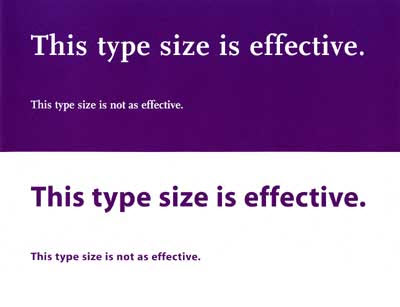
Point Size – The relationship between readability and point size differs somewhat among typefaces. image showing font point size that is effective and point size that is not effective

Leading – Spacing between lines of text, should be at least 25 to 30 percent of the point size. image showing leading that is effective and leading that is not effective

Font Family – Avoid complicated, decorative or cursive fonts. When they must be used, reserve them for emphasis only. image showing times roman font family as a font that is more effective than a decorative font family

Sans-serif or standard serif fonts with familiar, easily recognizable characters are best. image showing difference between serif and san-serif fonts

Font Style – Roman typeface, using upper and lower cases, is more readable than italics, oblique or condensed. image showing font style that is effective and font style that is not effective

Also, you should ensure that your text is selectable. Text that can be selected with a cursor is accessible to screen readers and other assistive technology. Images of text, such as word art, screenshots, or infographics are not accessible. A screen reader can not read the text in images. If you must include non-selectable text, also provide a text alternative.

Some additional points to consider:

  • Color should not be the only method used to convey information
  • Avoid red or green text or text decoration, such as Word Art, Shadows, 3D, etc.
  • Use bold or italic to display emphasis
  • Do not underline text (screen readers interpret underlines as links)
  • Avoid writing whole sentences in capital letters
  • Avoid moving or blinking text
  • Keep the number of fonts used to a minimum
  • The reading order should be the same as the visual order

You can find more information about accessible typefaces and fonts at Web AIM.

You will remove significant barriers for the visually impaired if you take these suggestions into consideration when creating course content. An added bonus is that there will be students without disabilities, as well as those who have chosen not to disclose their disability to you, who will find your use of these tips helpful as well.

A young man with vision impairment is focused on his laptop, working intently.

This is the first in a series of blog posts that is a follow-up to my recent Why Accessibility is Important post where I wrote,

Making accessible content doesn’t have to be complicated... Even small efforts make a big difference. Not only will your materials support students with disabilities, but you’ll also improve the learning experience for everyone. Plus, if you reuse your course content each semester, accessibility updates you make now will continue to pay off in the future.

Brightspace, our Learning Management System (LMS), is designed with accessibility in mind. However, it is the responsibility of the instructor and/or course designer to ensure their course content is formatted using best practices for accessibility; including the use of good heading structure, text formatting, contrast and color, descriptive links, alternative text, tables, lists, etc.

This first post focuses on headings. A good heading structure is an important accessibility consideration. Headings should be used to indicate main points and sub-points on a page. Like an outline, heading levels should appear in logical and consistent order.

Headings allow screen reader users to easily navigate through the page and can make the page more usable for everyone.

Page displaying the text "Chapter 2 Great Design" with identified heading levels for document structure.
A text page showing "Chapter 2 Great Design" with heading levels identified.

When creating documents, many people do not use true "heading styles." For example, when creating a heading, they simply change the font type, enlarge the font size, change the color, make it bold, etc. When this is done, the document has no real structure that can be detected by a screen reader program. While visual learners can scan the page for text that stands out from the rest, users who rely on a screen reader are not able to "see" these elements.

IMPORTANT: When creating heading styles always use the proper heading level. Create uniform headings so that a screen reader can navigate the content and can understand how it is structured. Watch this short video for an explanation of heading structures and reading order.

The correct way to provide structure for accessibility purposes is to use heading styles. Listed below are instructions for applying heading styles in MS Word, PowerPoint, Google Docs, Google Slides, and the Brightspace Editor.

Add heading styles in MS Word document:

  1. Click on the Home tab.
  2. Highlight the text.
  3. Click on the appropriate heading selector in the styles panel (e.g. Heading 1 for top-level heading; Heading 2 for a subheading of the top-level heading, etc.).
image of MS Word ribbon showing headings

Add heading styles in PowerPoint:

Using slide layouts will ensure that files have correctly structured headings and lists, and proper reading order. To assign a Slide Layout:

  1. Click on the Home tab.
  2. Click on New Slide.
  3. Choose the desired layout from the slide options menu.
PowerPoint ribbon showing slide layouts

Add heading styles in Google Docs:

  1. Highlight the text.
  2. Click on the appropriate heading selector in the styles panel (e.g. Heading 1 for top-level heading; Heading 2 for a subheading of the top-level heading, etc.).

Screenshot of Google Docs with the styles panel emphasized for user guidance.

Add heading styles in Google Slides:

Use predefined layouts instead of manually created text boxes, because the layouts are specially coded to work well with adaptive technologies like screen readers. To assign a Slide Layout:

  1. Click on Slide --> Apply layout button.
  2. Choose the desired layout from the slide options menu.

Screenshot of Google Slides with the new layout option emphasized for user guidance.

Add heading styles in the Brightspace Editor:

  1. Highlight the text.
  2. Select the proper heading level from the Format dropdown menu (e.g. Heading 1 for top-level heading; Heading 2 for a subheading of the top-level heading, etc.).

Screenshot of Brightspace Editor with the format option emphasized for user guidance.

Heading structures are essential for organizing documents into logical, hierarchical outlines, which improve readability for all users and ensure accessibility for those using screen readers.

Image credit: "Digital Literacy for visually impaired" by IAPB/VISION 2020 is licensed under CC BY-NC-SA 2.0

1

Various icons of people on a blue background, emphasizing diversity and the importance of accessibility.

This year marks the 36th anniversary of the Americans with Disabilities Act (ADA), a law ensuring that people with disabilities have the same rights and opportunities as everyone else. In education, accessibility is about more than compliance; it’s about equity and inclusion.

According to a U.S. Government Accountability Office (GAO) report, about 21% of college students report having a disability, including visual, hearing, cognitive, and motor impairments. Many more choose not to disclose their disability and often struggle quietly through their coursework.

Creating Accessible Learning Environments

Accessible course materials give all students a fair opportunity to succeed. Every day, some students encounter barriers such as:

  • Images or videos they cannot see
  • Documents that screen readers cannot interpret
  • Audio they cannot hear
  • Websites or platforms that cannot be navigated without a mouse

Chances are, you already have students in your courses who face these challenges—even if they haven’t disclosed them.

A set of four signs designed to communicate accessibility for people with disabilities.

Upcoming ADA Compliance Requirements

In 2024, the Department of Justice updated Title II of the ADA to require all publicly funded organizations, including colleges and universities, to conform to the Web Content Accessibility Guidelines (WCAG) developed by the World Wide Web Consortium.

  • Most institutions must comply by April 24, 2026.
  • Smaller municipalities and districts (under 50,000 people) have until April 26, 2027.

Non-compliance can result in lawsuits and significant penalties—so now is the time to ensure your materials meet accessibility standards.

While Brightspace is accessible to persons with disabilities, uploaded content may not be. Instructors should make a conscious effort to make sure content is accessible.

How Brightspace Supports Accessibility

Our Brightspace Learning Management System (LMS) is built with accessibility in mind and meets WCAG requirements. However, while the platform itself is accessible, uploaded course content may not be. It’s up to instructors to make sure their materials—documents, media, and links—are accessible to all students.

Practical Steps You Can Take

Making accessible content doesn’t have to be complicated. A few simple practices go a long way:

  • Use clear headings and descriptive hyperlinks
  • Add alternative text (alt text) for all images
  • Provide captions for videos and transcripts for audio
  • Ensure documents (especially PDFs) are screen-reader friendly
  • Avoid using color alone to convey meaning

Even small efforts make a big difference. Not only will your materials support students with disabilities, but you’ll also improve the learning experience for everyone. Plus, if you reuse your course content each semester, accessibility updates you make now will continue to pay off in the future.

In an upcoming series of blog posts, I will go into more detail on the things you can routinely do when you create content and setup your Brightspace courses to make them accessible.

Image credits:
Image by cris renma from Pixabay
HandicappedAccessibleSign by Free SVG is licensed CC0

Set Students Up for Success Using Release Conditions [56:08]

Thanks to those of you who attended last week's "Set Students Up for Success Using Release Conditions" workshop. This workshop, the 2nd in our #LEX Advanced series, helps you to build on the skills you learned in the #LearnEverywhereXULA course and shows how utilizing Release Conditions can set your students up for success in your classes.

NOTE: This is a repeat of a workshop from 2021; however, as you know, Brightspace is a constantly evolving system, and this workshop is a refresher for those who previously attended and brings users up to date with changes/improvements to the Release Conditions system.

In case you missed the training session or if you attended the training session and want to recap what was covered, a copy of the workshop recording and resources referenced in the workshop are available. You can find the workshop recording and other resources in support of the workshop on the CAT+FD wiki.

Additionally, if you did not get the opportunity to earn a digital badge for participating in the workshop, it's not too late to earn that badge. We have a corresponding “Release Conditions” module in the #LearnEverywhereXULA (#LEX) course that you can complete to earn a digital badge for this topic. The badge will count towards your #LEX Advanced certification.

I am writing this blog post as a follow up to my recent announcements blog post. ICYMI, you can find the blog post here: Brightspace Tip #561: Announcements.

Announcements can help boost learner engagement by providing regular and timely communications to all learners enrolled in a course. This blog post focuses on pinning, reordering, and copying announcements.

Pin Announcements

Pinning an announcement to the top of the Announcements widget keeps critical information immediately visible to students, preventing important updates from getting buried as new, less urgent posts appear. This feature ensures key messages remain prominently displayed on your course homepage. Multiple announcements can be pinned, but the most recently pinned message will appear at the top of your list.

Screenshot of a Brightspace announcement section with options to pin announcements to the top.
Brightspace announcement with the option to Pin to top highlighted.
Screenshot of a Brightspace announcement section with a pushpin icon and the word "pinned" highlighted.
Brightspace announcement with Pinned highlighted.

NOTE: While pinned announcements will appear at the top of the Announcements widgets, learners can dismiss announcements, including pinned announcements.

Unpin Announcements

There is no expiration date to remove a pinned announcement. You have to manually remove the pin. However, when you set an end date for a pinned announcement, the pinned announcement will not appear in the learners announcement widget past its availability end date.

Screenshot of a Brightspace announcement section with option to unpin highlighted.
Brightspace announcement section with option to Unpin highlighted.

Reorder Announcements

Did you create or update an announcement and need to move it to the top? Did you push back an assignment and want to change the order of your announcements? If so, you can reorder your announcements!

Screenshot of a Brightspace announcement tool with the "More Actions" menu and the "Reorder" option highlighted.
Brightspace announcement tool with the More Actions menu and the Reorder option highlighted.
Screenshot of a Brightspace reorder announcement page with the sort order column highlighted.
Brightspace reorder announcement page with the sort order column highlighted.

Copy Announcements

With just a few clicks you can quickly make a copy of a course announcement in the same course as well as copy the announcement to other Brightspace courses. This feature is built right into the shortcut menu. You don't have to copy and paste to duplicate the announcement.

Screenshot of a Brightspace announcement section with the options to "Copy" and "Copy to Other Courses" highlighted.
Brightspace announcement section with the options to Copy and Copy to Other Courses highlighted.

Note: You must be enrolled in the course you copy from (source) and the courses you copy to (destination).

You can select the following options when copying announcements:

  • Copy announcements to other courses in draft state, so you can publish the announcement content from within the destination course later.
  • Publish copied announcements at the same time you copy it, bypassing the draft stage.

Attributes That Are Copied:

  • Headline
  • Display Author Information
  • Content: Includes associated files, such as inserted images.
  • Start and End Date: Start and end dates are not automatically offset. Dates remain the same as in the original course.
  • Attachments
  • Pin State

Attributes That Are Not Copied:

  • Assignments
  • Quick links to activities
  • LTIs
  • Release Conditions
  • Send Email Copy settings

Follow these steps to do it.

Pin an Announcement:

  1. From the Announcements widget or the Announcements tool, select the dropdown arrow beside the announcement’s title, then select Pin to top.
  2. A pin icon will appear beside the posted date.

Unpin an Announcement:

  1. From the Announcements widget or the Announcements tool, select the dropdown arrow beside the announcement’s title, then select Unpin.
  2. The pin icon will be removed.

Reorder Announcements:

  1. From the Announcements tool, click on More Actions, then select Reorder.
  2. Change the sort order number for the relevant announcements.
  3. Click Save.

Copy Announcements:

  1. From the Announcements widget or the Announcements tool, select the dropdown arrow beside the announcement’s title, then select Copy or Copy to Other Courses and follow the prompts.

Want more information?

Create an announcement using the Announcements widget
Brightspace Tip #561: Announcements

View current, past, and preview upcoming Continuous Delivery release notes
Instructors Quick Start Tutorial
Brightspace Known Issues
Request a sandbox course
Sign-up for Brightspace training sessions
You can find Brightspace help at D2L's website.
Join the Brightspace Community.
Try these Brightspace How-To documents.
Visit our Brightspace FAQs for additional Brightspace information
or schedule a one-on-one session, email, or
call Janice Florent: (504) 520-7418.

Note: Are you doing something innovative in Brightspace or perhaps you've discovered a handy tip? Share how you are using Brightspace in your teaching and learning in The Orange Room.

"Drip-feeding" is a term you will likely hear in association with online and hybrid learning. While the term "drip-feeding" is new to many people, most are familiar with the concept.

drop of water dripping slowly from a faucet

Drip-feeding is "scheduled lesson delivery." Essentially, instructors can determine when they want certain content in their courses to become available. Instructors can configure their course content and then set-up the sequential delivery of that content. Once set-up, the Learning Management System (LMS) will auto-drip the content to students without any more work by the instructor.

Utilizing date/time restrictions allow instructors to create content at a time that is convenient to them and make it visible to students at the appropriate time. This can be very handy because instructors can set-up their course content well in advance of when they want it to be available to their students. For example, create all the course content at the beginning of the semester, set the date/time restrictions, and then let Brightspace auto-drip the content.

The availability dates in Brightspace control when items are available to students. There are three types of availability dates, they are:

  • Start dates: These dates specify when a student can see the item. Students will see that the item exists, but they cannot open it beforehand.
  • Due dates: These dates specify when a student should complete an item. The dates will appear in the course calendar and students will be able to see and submit their work after the date has passed.
  • End dates: These dates restrict access to the item. They remove all access once the date has passed.

Some instructors may be hesitant to set date/time restrictions for the entire semester because assignment dates/times may need to be adjusted as the semester progresses. This means, the instructors would have to go into the content items to adjust the dates/times when necessary. The Manage Dates tool can simplify this process. The Manage Dates tool allows instructors to easily change due dates and availability dates at one time (all on one page). The Manage Dates tool will save instructors some time as they will not have to edit each individual item to adjust the dates/times.

Drip-feeding works well for courses that contain complex material that students need time to digest and complete. In this case, drip-feeding content may help your students not to feel overwhelmed.

Want More Information?

Setting Dates and Restricting Availability for Modules and Topics in Content
Brightspace Tip #560: Manage Dates

View current, past, and preview upcoming Continuous Delivery release notes
Instructors Quick Start Tutorial
Brightspace Known Issues
Request a sandbox course
Sign-up for Brightspace training sessions
You can find Brightspace help at D2L's website.
Join the Brightspace Community.
Try these Brightspace How-To documents.
Visit our Brightspace FAQs for additional Brightspace information
or schedule a one-on-one session, email, or
call Janice Florent: (504) 520-7418.

Note: Are you doing something innovative in Brightspace or perhaps you've discovered a handy tip? Share how you are using Brightspace in your teaching and learning in The Orange Room.

Photo credit: "Dripping faucet" by Albert Lynn is licensed under CC BY-NC-ND 2.0

the word update written on a chalk board

D2L (the company that owns Brightspace) uses Continuous Delivery to update our Brightspace system. The Continuous Delivery model gives us regular monthly updates allowing for incremental and easily integrated changes with no downtime required for our Brightspace system.

Our Continuous Delivery update occurs on the 4th Thursday of each month. D2L provides release notes to help users stay up-to-date with the changes.

Here are some of the updates in the January 2026/20.26.01 release that were added to our system this month:

1) Announcements – Images appear in emailed Announcement notifications

When instructors create an announcement (or administrators create a global announcement) which includes in-line images, any instant notification or emailed copy of that announcement now includes those images in the body of the email. Previously, only images added as file attachments to the announcement were included with the notification email, and in-line images were not shown.

Note: This update applies only to images. Videos embedded in announcements are not included in emailed announcement notifications.

This change ensures that learners who rely on email notifications can see the same visual content that appears in the original announcement, helping them notice important information that may have previously been missed when images were omitted from the email version.

This feature implements the following PIE items:

  • D7210 (Images in announcements do not appear in the email-version of the notification)
  • D12152 (Permit images to be sent in an email notification for an announcement)
  • D7939 (Include images in Brightspace-generated email of Announcements - partial release; videos are not included)

2) Assignments, Quick Eval – Improved usability for assistive technology users

As part of D2L’s ongoing commitment to accessibility and inclusive design, with this release, they have made several updates to enhance the experience for users relying on assistive technologies.

  • The Submissions page in Assignments: The dropdown menus for submissions, feedback, and results per page now include accessible labels. Previously, these menus only had titles, which some screen readers could miss. This change ensures that all users can access and understand these controls.
  • The Submissions view in Quick Eval: The number of search results returned is now read aloud by assistive technology, making it easier for users to understand the scope of their results.
The Quick Eval page in Submissions view with the search term entered in the search field. A highlighted label shows the number of search results.
Quick Eval interface displaying filtered submission results, with the number of returned results now read aloud
The Quick Eval page in Activities view with the search term entered in the search field. A highlighted label shows the number of search results.
Quick Eval interface showing filtered activity results based on a search query, with the number of returned results now read aloud

3) Awards – Increased flexibility in Awards text fields

To improve localization and language flexibility, administrators and instructors can now personalize certificates in the Awards tool using new replacement strings. These strings populate dates in a short YYYY-MM-DD format, which provides more consistent rendering across multilingual certificate templates.

Previously, existing date replacement strings used long-form formats. This caused issues when certificates were created in one language and the date string rendered in another, often breaking formatting. The new short-form format resolves this issue.

The following replacement strings are now available:

  • {CourseStartDateShort}: Inserts the course start date.
  • {CourseEndDateShort}: Inserts the course end date.
  • {AwardDateShort}: Inserts the award issue date.
  • {AwardExpiryDateShort}: Inserts the award expiry date.

4) Quizzes – Single Session Quiz

Instructors can now require learners to complete a quiz within a single Brightspace login session, helping maintain academic integrity. When this setting is enabled, learners cannot resume the quiz using another browser session. For example, if a learner starts a quiz on a laptop, they cannot continue the quiz on another device such as a smartphone or tablet.

When this configuration variable is enabled, instructors can navigate to the Availability Dates & Conditions section while creating or editing a quiz and select Lock each attempt to a single login session.

Interface showing Availability Dates and Conditions with IP Restrictions and a checked option to lock each quiz attempt to a single login session.
From the quiz’s Availability Dates & Conditions section, select Lock each attempt to a single login session to restrict attempts to one active session

IMPORTANT:

  • This setting only restricts access to the quiz. It does not prevent learners from having multiple active sessions in Brightspace.
  • While this feature enhances academic integrity, you should use it with caution. We suggest reserving this option for live testing environments where you are available to assist immediately. If a student experiences a technical glitch or a dropped connection, they will be unable to resume the quiz attempt without your direct intervention to reset the session restriction.

This feature implements the following PIE item:

  • D11297 (Prevent multiple sessions taking one quiz attempt simultaneously)

If you are interested in getting more information about these and all the January Continuous Delivery updates, refer to the Brightspace Platform January 2026/20.26.01 Release Notes.

Additionally, refer to the Brightspace Release Notes for Continuous Delivery Releases, for details about current, past, and to preview upcoming continuous delivery updates.

Want more information?

View current, past, and preview upcoming Continuous Delivery release notes
Instructors Quick Start Tutorial
Brightspace Known Issues
Request a sandbox course
Sign-up for Brightspace training sessions
You can find Brightspace help at D2L's website.
Join the Brightspace Community.
Try these Brightspace How-To documents.
Visit our Brightspace FAQs for additional Brightspace information
or schedule a one-on-one session, email, or
call Janice Florent: (504) 520-7418.

Note: Are you doing something innovative in Brightspace or perhaps you've discovered a handy tip? Share how you are using Brightspace in your teaching and learning in The Orange Room.

Image credit: image by geralt from Pixabay

Visual emphasizing the need for educators to prepare for instructional continuity due to the reality of disaster threats

This weekend's forecast of wintry weather and freezing rains in our area should be a reminder that course delivery is vulnerable to unplanned events. Potential interruptions to class activities include but are not limited to natural disasters, widespread illness, acts of violence, planned or unexpected construction-related closures, severe weather conditions, and medical emergencies.

Here are a few things you can do in Brightspace to help you prepare should the need arise.

For those who missed our "Preparing to Teach During an Interruption: Strategies for Maintaining Instructional Continuity" workshop and for those who want to learn more about instructional continuity, you will find a link to the workshop recording, PowerPoint slides, and resources discussed in the workshop here:

Want More Information?

Instructors Quick Start Tutorial
Continuous Delivery release notes
Brightspace Known Issues
Request a sandbox course
Sign-up for Brightspace training sessions
You can find Brightspace help at D2L's website.
Join the Brightspace Community.
Try these Brightspace How-To documents.
Visit our Brightspace FAQs for additional Brightspace information
or schedule a one-on-one session, email, or
call Janice Florent: (504) 520-7418.

Note: Are you doing something innovative in Brightspace or perhaps you've discovered a handy tip? Share how you are using Brightspace in your teaching and learning in The Orange Room.

Image credit: "The threat of disasters is real" by jflorent is licensed under CC BY-NC-SA 4.0

Video Note new recording window
Video Note Recording Window

Video Notes is a built-in media recording tool in Brightspace that allows instructors and learners to record short videos (up to 30-minute video recording) with a webcam or up to 1GB file upload. This makes it easy to personalize the learning experience with short, video-based feedback, comments, or instructions. Video Notes can be added where video attachments are supported and when the Brightspace Editor’s Insert Stuff option is available.

Instructors can use Video Notes to:

  • Create a new Topic in Content area
  • Add a Description to a Module or a Topic in the Content area
  • Create an Announcement
  • Provide instructions when creating a Submission Folder for Assignments
  • Provide a feedback on students’ Assignments
  • Give a description of a new Topic in Discussions or make a post on a Discussion topic
  • Give students feedback in the Grade Book
  • Post a message in the Activity Feed
  • Anywhere Brightspace Editor is available

Learners can use Video Notes in these areas of Brightspace:

  • When adding comments to uploaded assignments in a Submission folder
  • When posting a new thread or replying on someone’s thread in Discussion topic
  • Anywhere Brightspace Editor is available

Follow these steps to do it.

To create and insert a video note in the Brightspace Editor:

  1. In the Brightspace Editor, click the Insert Stuff icon.
  2. Click Add Video Note.
  3. Select Record Webcam Video, or Upload File.

    If Record Webcam Video is selected, follow these steps:

    1. Click New Recording.
    2. Record up to 30 minutes of video and click Stop Recording.
    3. To view the video note, click the play icon.
    4. If you are satisfied with the video, click Next.
    5. Enter a title, description, and audio language for the video note. To generate captions automatically, select Automatically generate captions from audio.
    6. Click Next.
    7. Click Insert.

    If Upload File is selected, follow these steps:

    1. Click Choose File and select the file you want to upload from your computer.
    2. File format must be .mp4, .webm, .mov, .flv, or .f4v, and file size cannot be larger than 1GB.
    3. Click Next, and enter a title and description.
    4. Click Next, and then Insert.

insert stuff button

example of insert stuff menu with video note selected
Add Video Note from Insert Stuff menu

Want more information?

Create Video Notes
Create and insert a Video Note in Brightspace Editor
Reuse Video Notes
Transforming Feedback with Video Note (University of Windsor)
Understanding the Brightspace Editor
Add closed captions to a Video Note
Edit Video Notes closed captions

View current, past, and preview upcoming Continuous Delivery release notes
Instructors Quick Start Tutorial
Brightspace Known Issues
Request a sandbox course
Sign-up for Brightspace training sessions
You can find Brightspace help at D2L's website.
Join the Brightspace Community.
Try these Brightspace How-To documents.
Visit our Brightspace FAQs for additional Brightspace information
or schedule a one-on-one session, email, or
call Janice Florent: (504) 520-7418.

Note: Are you doing something innovative in Brightspace or perhaps you've discovered a handy tip? Share how you are using Brightspace in your teaching and learning in The Orange Room.